Runtime
InSiSo Visual Detector
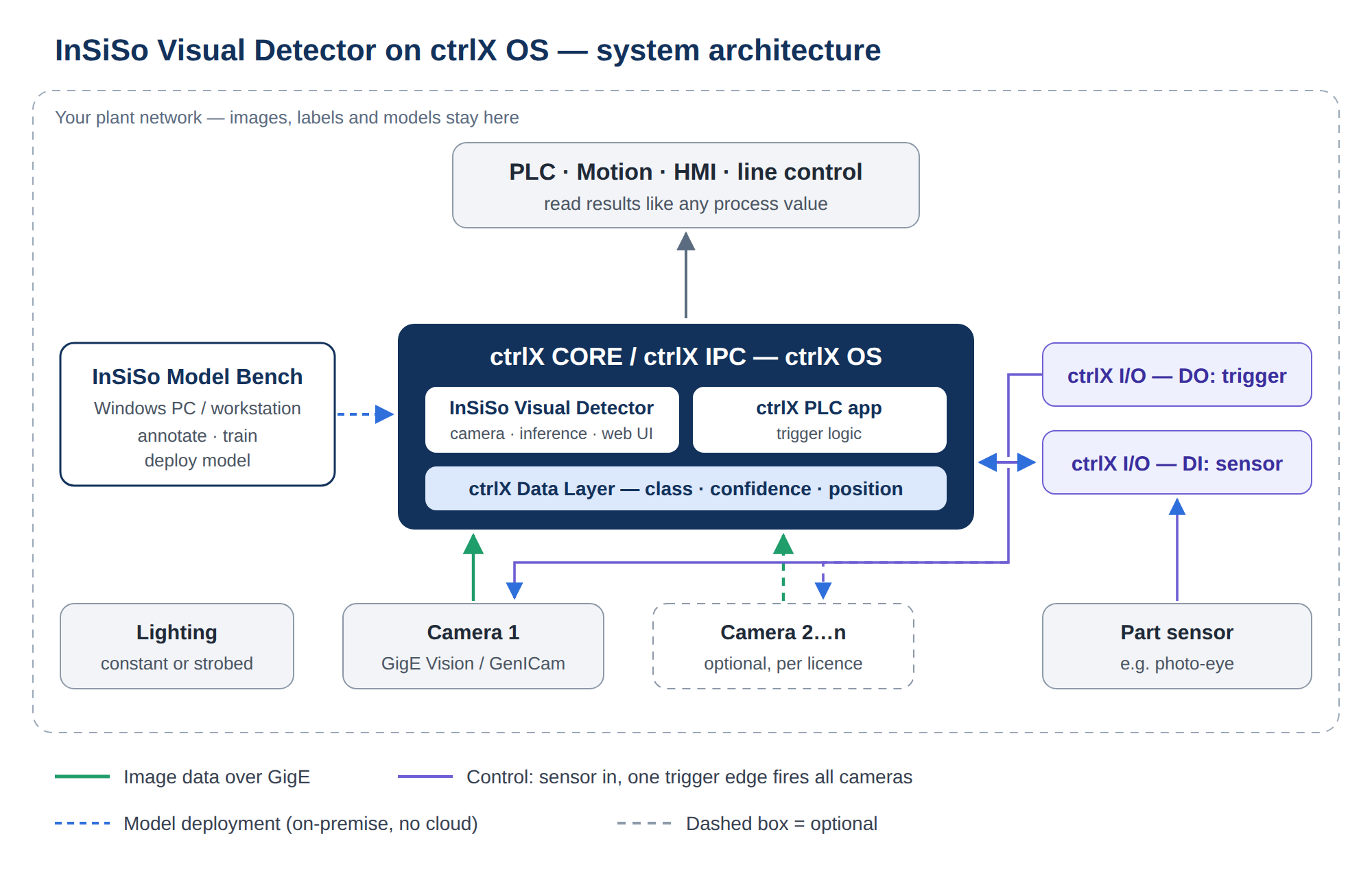
Finds parts by colour or with a model trained in InSiSo Model Bench, on live cameras, and publishes what it finds to the ctrlX Data Layer. It runs on ctrlX OS, on the ctrlX CORE or a ctrlX IPC.
Run it
- Install the app and its licences on the ctrlX device.
- Connect a camera on the Camera Connector page.
- Tick the colours to find on Color Detection, or load a model on Object Detection.
- Optional: calibrate Coordinate Mapping to get positions in machine millimetres.
- From the PLC: wait for
ready, writetrigger, read the answer. See Data Layer.
After commissioning nobody needs to press anything. After every reboot the app comes back with its settings, connects its cameras and detects.
What it does
Coloured parts by colour range, and objects of the classes you trained, with a confidence per object.
Each object's centre, size and orientation in pixels, and in machine millimetres with Coordinate Mapping.
Every picture's results to one Data Layer folder, as arrays, with a picture counter on every value.
A detection history with CSV export, and saved pictures for retraining in Model Bench.
The functions
Each function is a page in the app and has its own licence. The Runtime licence is needed for all of them.
| Function | What it gives | Page |
|---|---|---|
| Camera Connector | GigE Vision, USB and RTSP/HTTP cameras; free run, software or hardware trigger | Camera Connector |
| Color Detection | Every blob of a ticked colour, with its centre and size in pixels | Color Detection |
| Object Detection | Every object a Model Bench model finds, with class and confidence | Object Detection |
| Code Reading | The Data Matrix text inside each detected label | Object Detection |
| 3D Dimensioning | Length, width and height of each detected parcel in millimetres | Object Detection |
| Coordinate Mapping | Each object's position in machine millimetres | Coordinate Mapping |
| Detection History | A record of what was found, kept across power cycles | Detection History |
| Diagnostics | Is it ready, a trigger test, the licence, performance, support files | Diagnostics |
The app's Help page lists every Data Layer node and command of the installed version.
In this manual
ctrlX devices, ctrlX OS, cameras, accelerators
SetupInstallationInstalling, updating and removing the app
CommissioningCamera ConnectorCameras, trigger modes, saved pictures
PLC / HMIData LayerThree steps from a PLC, every node
ValidationTest setupA typical usage and test scenario
LicenceLicensingRuntime, AddOns and packages
About the screenshots
The screenshots show the app's pages with a simulated camera: a carton with a label, and red, orange and blue parts on a belt. The numbers in them (frame rates, timings, positions) come from that demonstration setup, not from a measurement on a ctrlX device.